


By Dong Danping, Senior Librarian, Research & Data Services
We've all been there. Hundreds of notes, papers, half-finished ideas—years of thinking, carefully (or sloppily) saved. Yet when you sit down with an AI assistant, it has no idea what you've been working on. You paste in a few excerpts, get a generic response, and end up doing the synthesis yourself anyway.
What if your AI could read your entire Obsidian vault? How would that transform your research workflow?
AI Research Assistant with Full Access to Your Knowledge System
Personal Knowledge Management (PKM) tools like Obsidian and Notion have gained traction among researchers as a way to build a connected, searchable knowledge base. Until recently, these knowledge bases lived in isolation from AI tools.
MCP (Model Context Protocol) is an emerging standard that allows AI assistants to connect directly to external systems, for instance, your Obsidian/Notion, your reference library or your institution's licensed content. With MCP, your AI are granted pathways to access content directly in other databases and systems. The ecosystem is growing fast with tools like Zotero, Semantic Scholar, OpenAlex beginning to offer MCP integrations.
In this article, we focus on connecting Claude Desktop to your Obsidian vault, to illustrate the potential use cases when an AI assistant has access to your personal research knowledge base.
In Practice: Claude Desktop + Obsidian
Right now, the most accessible way to experience this is through Claude Desktop paired with Obsidian via an MCP server. Obsidian stores your notes locally and already has a strong following among PhD students and researchers. Claude Desktop currently offers relatively mature MCP support among mainstream AI assistants.
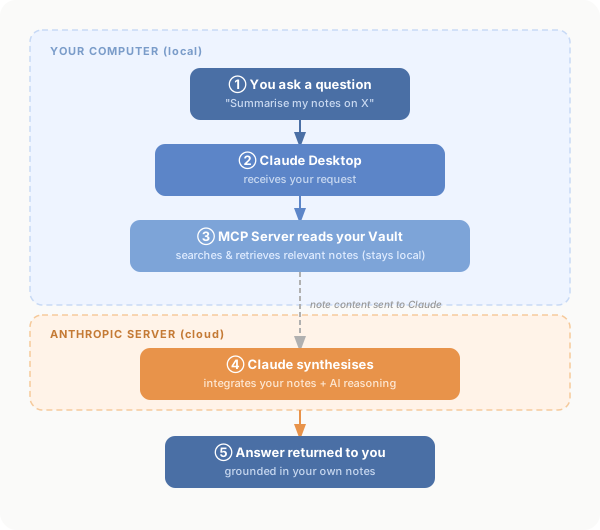
What does this actually look like in practice?
- Cross-note synthesis: Ask Claude to pull together themes across your reading notes on a particular topic
- Persistent research context: Instead of re-explaining your research question every session, Claude can read your project notes and pick up where you left off. It knows your methodology, your working definitions, your open questions.
- Turning messy notes into structured output: Dump your workshop or conference notes into your vault, then ask Claude to extract key takeaways, action items, or a structured summary.
Example questions that you can ask Claude in your Obsidian vault:
- What are the recurring arguments across my notes on [topic]? Where do my sources disagree?
- Have I read anything that challenges this claim: [paste claim]?
- I have notes from 3 different projects. Are there any unexpected connections between them?
- Find my [conference name] notes. Extract key takeaways and flag anything relevant to my current research
- Add tags/keywords/yaml front matter to [this note] based on its content
- Summarise this reading note and suggest how it relates to my other notes on [topic]

In the demo above, Claude reads across multiple notes and synthesizes a response grounded in the vault's content.
Beyond reading and synthesis, Claude can also help organise your vault: adding tags, keywords, or structured metadata to keep scattered notes tidy.
However, it is important to note that the quality of the output still depends on the quality of what you've written. But the shift is meaningful: instead of AI as a generic assistant, you get AI that has been given access to your accumulated thinking.
Want to Try It? A Quick Setup Guide
If you're already using Obsidian (or curious to start), the setup is more straightforward than it sounds:
- Download and install Claude Desktop
- Install Node.js (required to run the MCP server — download the prebuilt installer for a codeless installation)
- Install the Obsidian MCP server. A common option is "mcp-obsidian" available on GitHub
- Configure Claude Desktop: go to Settings → Developer → Edit Config to locate
claude_desktop_config.json, and add the following:
{
  "mcpServers": {
    "obsidian": {
      "command": "npx",
      "args": ["@mauricio.wolff/mcp-obsidian@latest", "/path/to/your/vault"]
    }
  }
}- Replace
/path/to/your/vaultwith your actual Obsidian vault path, then exit and restart Claude Desktop. You're now connected.
The whole process takes about 10–20 minutes. If you get stuck, refer to the MCP documentation or simply ask your AI assistant to help troubleshoot.
A Direction Worth Watching
PKM-connected AI is still in its early stages. The tools are emerging and evolving rapidly, but not every MCP workflow will benefit equally. Yet the core idea is exciting: AI research assistants with agentic capabilities, with a degree of autonomy, and access to both research infrastructure and your personal research context. This feels like an important shift in how research workflows are designed and experienced.
Interested in exploring this for your research workflow? Contact the library for a consultation.
Credit: This article was written in collaboration with Claude.